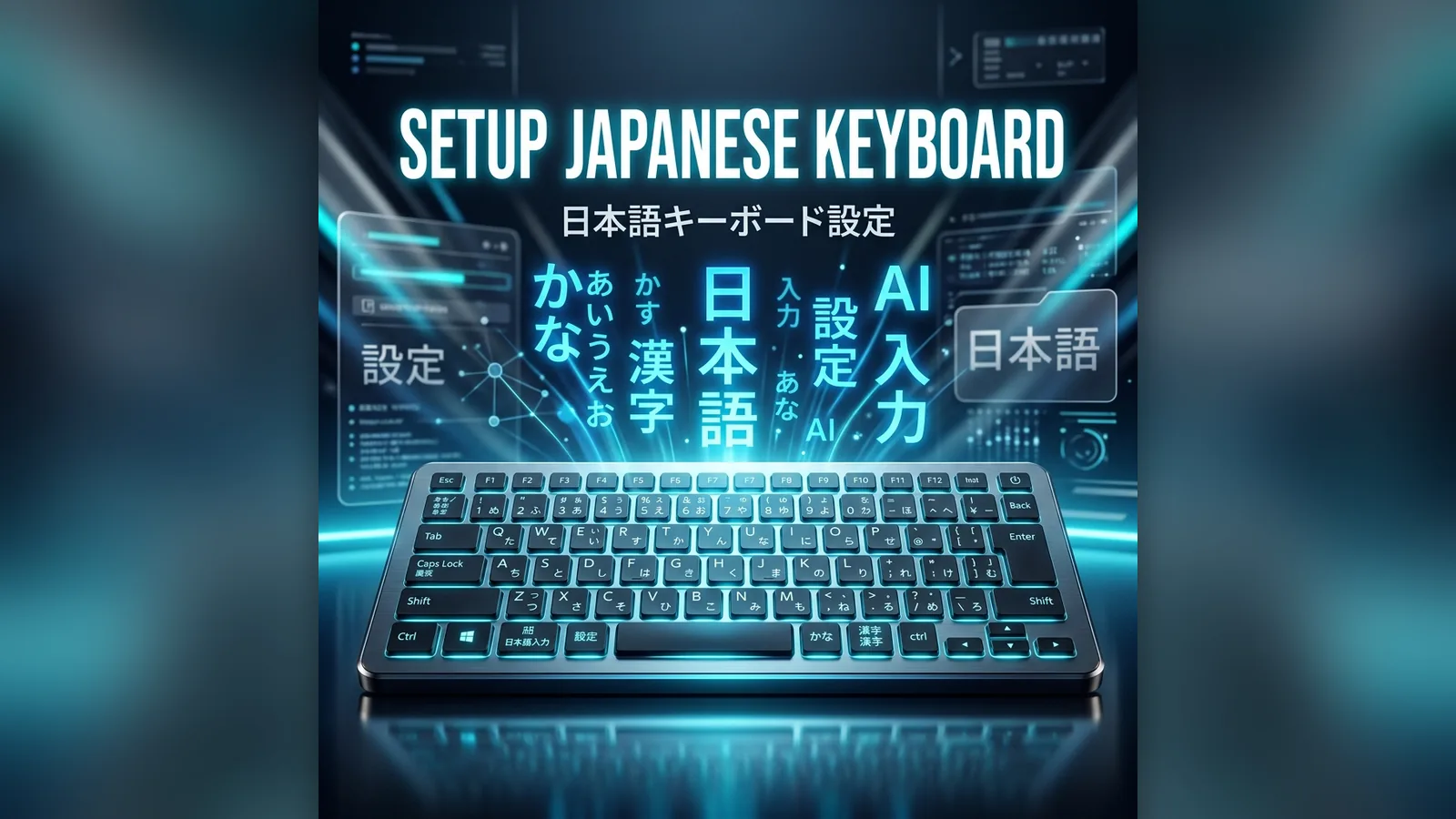
You can't learn Japanese if you can't type it! Setting up a Japanese keyboard (IME - Input Method Editor) on your devices is the first technical step every learner must take. Don't worry, you don't need to buy a physical Japanese keyboard; you type phonetically using English letters, and the software converts it into Kanji.
Romaji Input is King
Almost all Japanese people and learners type using "Romaji Input." This means you type "k-a" on your English keyboard, and the screen automatically outputs "か". You then press the Spacebar to convert that Hiragana into Kanji (like "蚊" or "下").
How to Setup on Windows 11 / 10
- Open Settings and go to Time & Language.
- Click on Language & Region.
- Under "Preferred languages", click Add a language.
- Search for "Japanese" and install it (Microsoft IME will be installed automatically).
- How to use: Press Windows + Space (or Alt + Shift) to switch languages. Once in Japanese mode, press Alt + ` (the key left of 1, also marked ~) to toggle between English letters and Hiragana input.
How to Setup on Mac (macOS)
- Open System Settings and click on Keyboard.
- Under "Text Input", click Edit... next to Input Sources.
- Click the + button, search for "Japanese", and select Japanese - Romaji.
- How to use: Press Control + Space to switch keyboards. Type "arigatou" and press Spacebar to convert!
How to Setup on iPhone (iOS)
On smartphones, most Japanese people do not use the QWERTY keyboard. They use a "Flick Keyboard" (10-key layout). It is much faster once you get used to it.
- Go to Settings > General > Keyboard.
- Tap Keyboards > Add New Keyboard...
- Select Japanese, and choose Kana (Flick layout).
How to Flick
Tap the "あ" button for "a". Swipe left on it for "i". Swipe up for "u". Swipe right for "e". Swipe down for "o". It's entirely muscle memory!
⌨️ Put Your New Keyboard to Use
Now that you can type in Japanese, it's time to start writing sentences. Type a sentence to Lena, LenGaki's AI tutor, and ask her to check your grammar, particles and kanji choice (3 free messages a day), or type kanji readings as answers in LenGaki's kanji quizzes.